How To Use VendMedia
A guide for vending operators, from onboarding to going live.
Signing in
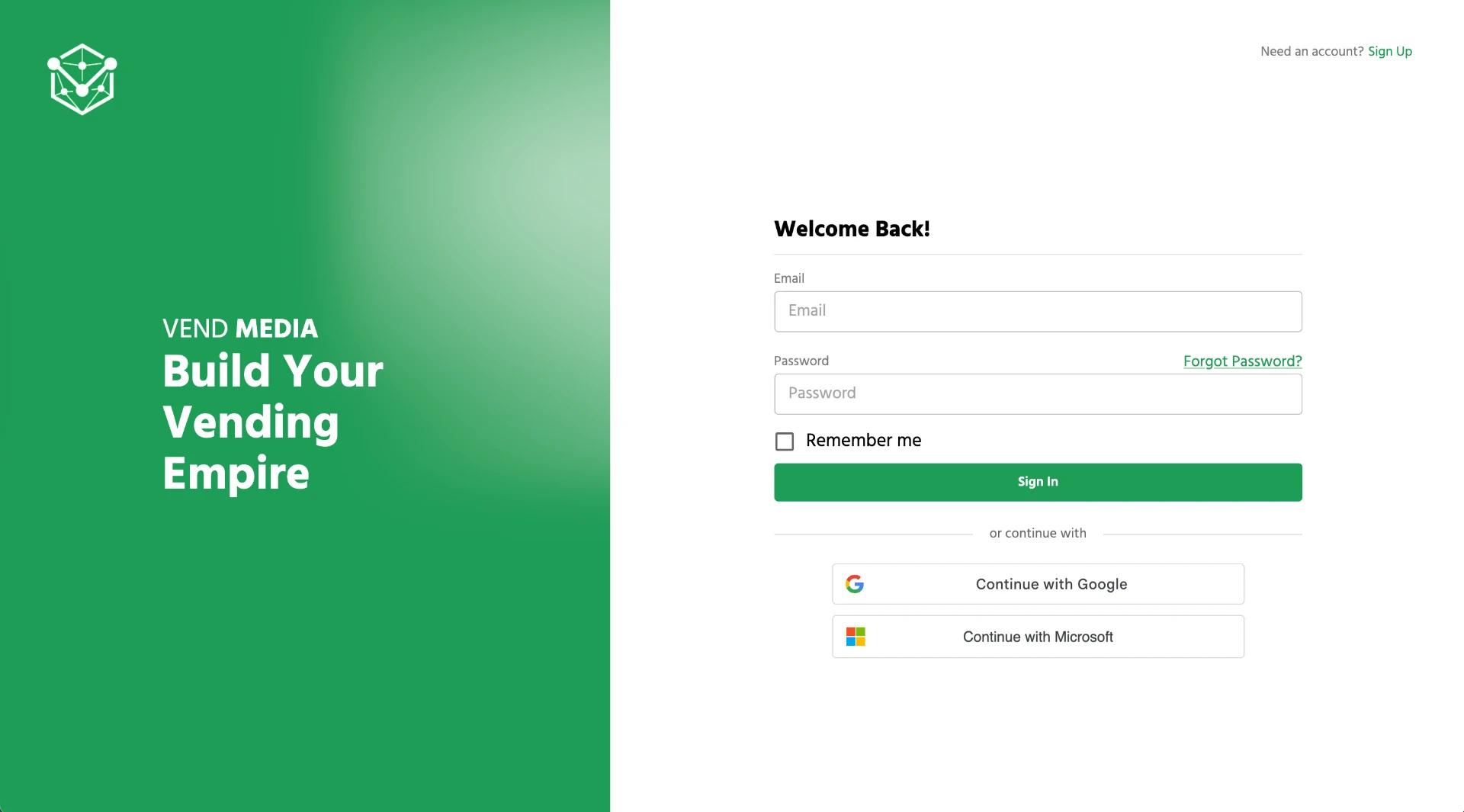
You don't need to create an account yourself. When your account is ready, you'll get an automated email with your username and a temporary password. Use those to sign in.
1. Email
Enter the username (email address) from your welcome email.
The Screens page
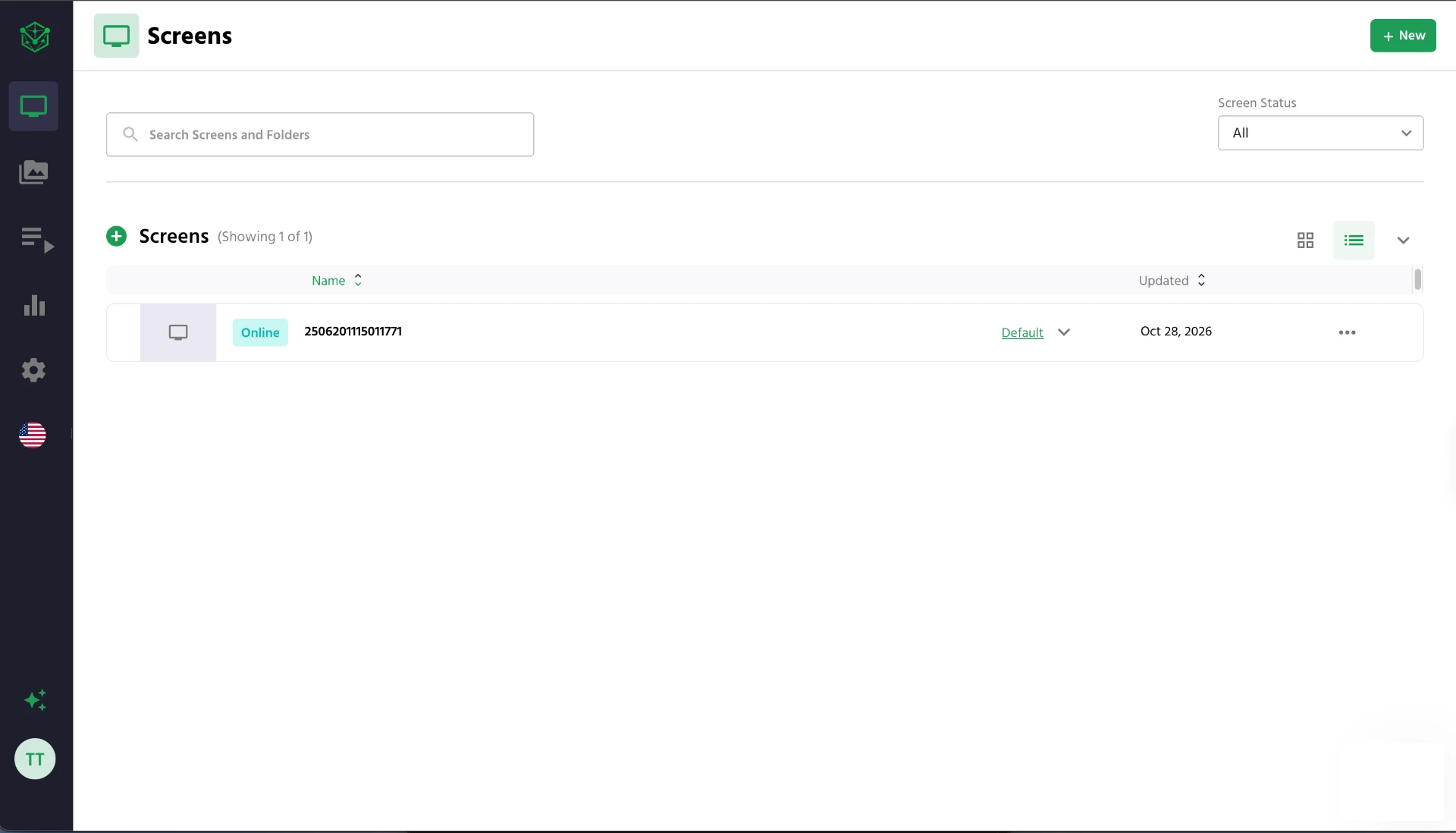
After you sign in, you'll land on the Screens page. It lists every screen in your network. By default, each screen is named with its machine's serial number.
Here you can see whether screens are online or offline, rename screens, organize them into folders, and manage other screen details.
1. Search
Find a screen or folder by name or serial number.
Quickly change a screen's playlist
What is a playlist?
A playlist is a "loop of content" that plays on your screen. What goes in it is in your control. VendMedia will seamlessly inject ads into your playlist when we have ads to play.
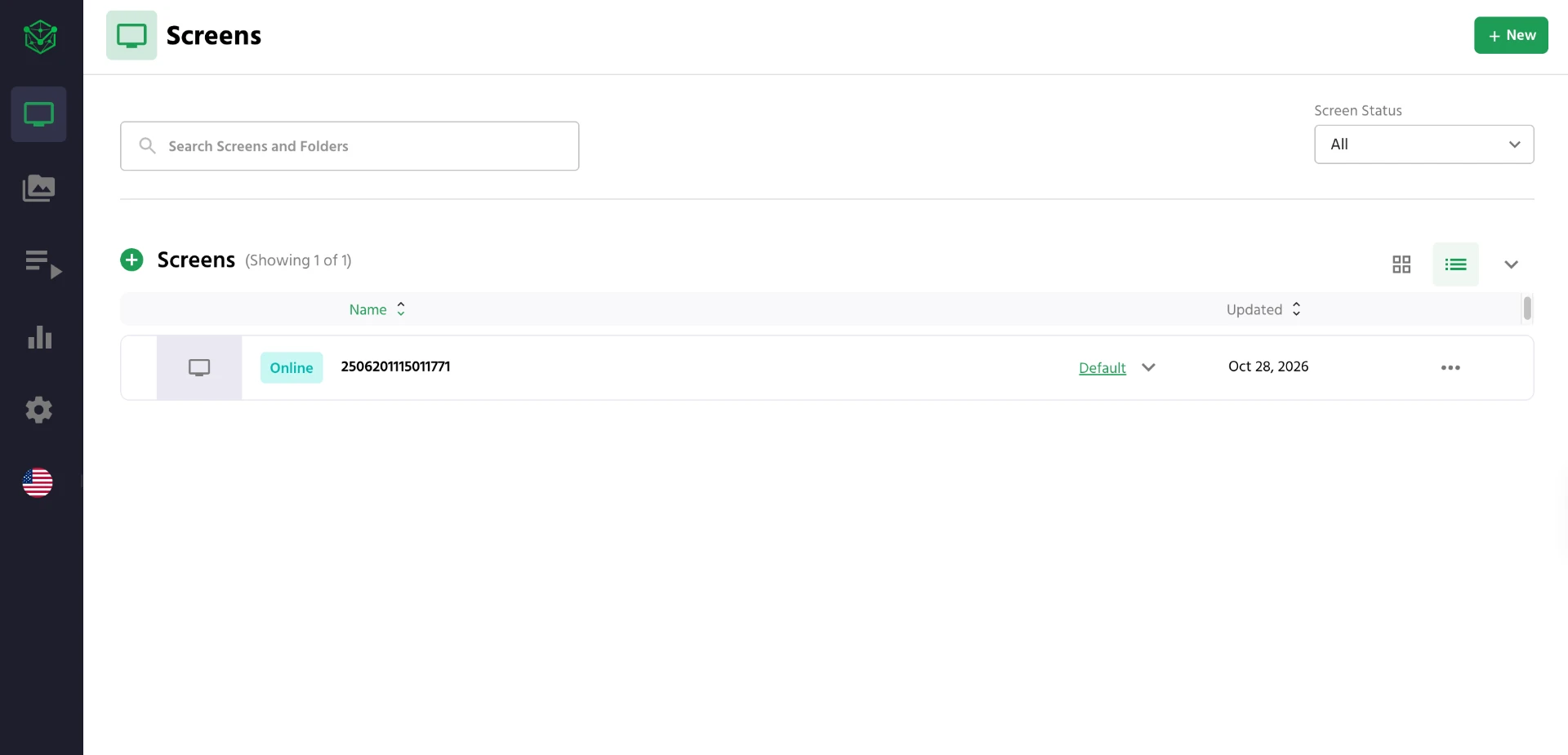
Click the dropdown next to the playlist name in the screen list to quickly change the playlist assigned to that screen.
1. Playlist dropdown
Click to pick a different playlist for this screen.
Screen details
Tap any screen in the list to open its details. From there you can change its name, change the playlist assigned to it, and manage other screen details.
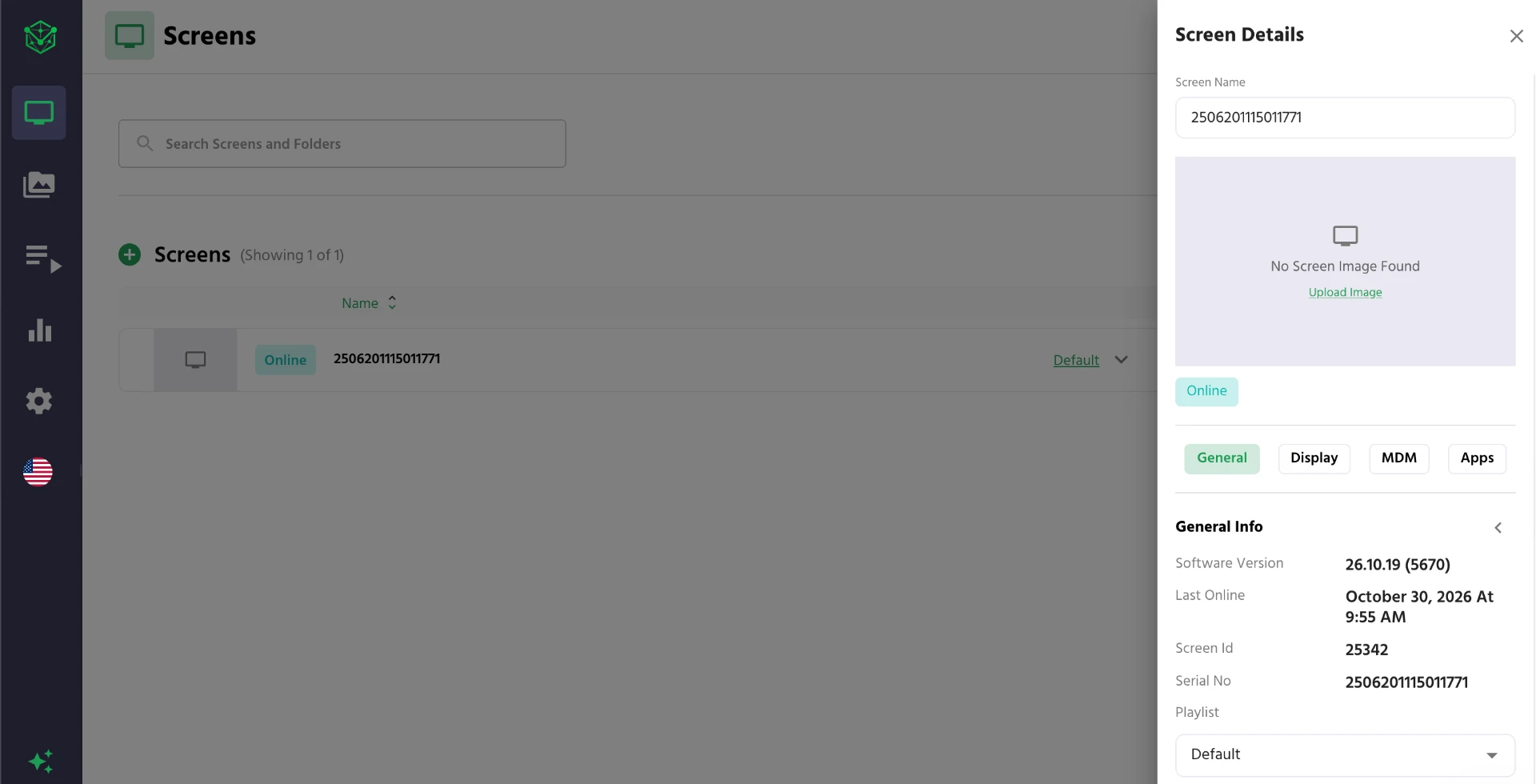
1. Screen Name
Type a new name here to rename the screen.
Playlists
The Playlist page lists all of your playlists, whether each one is a draft or published, and how many screens use it.
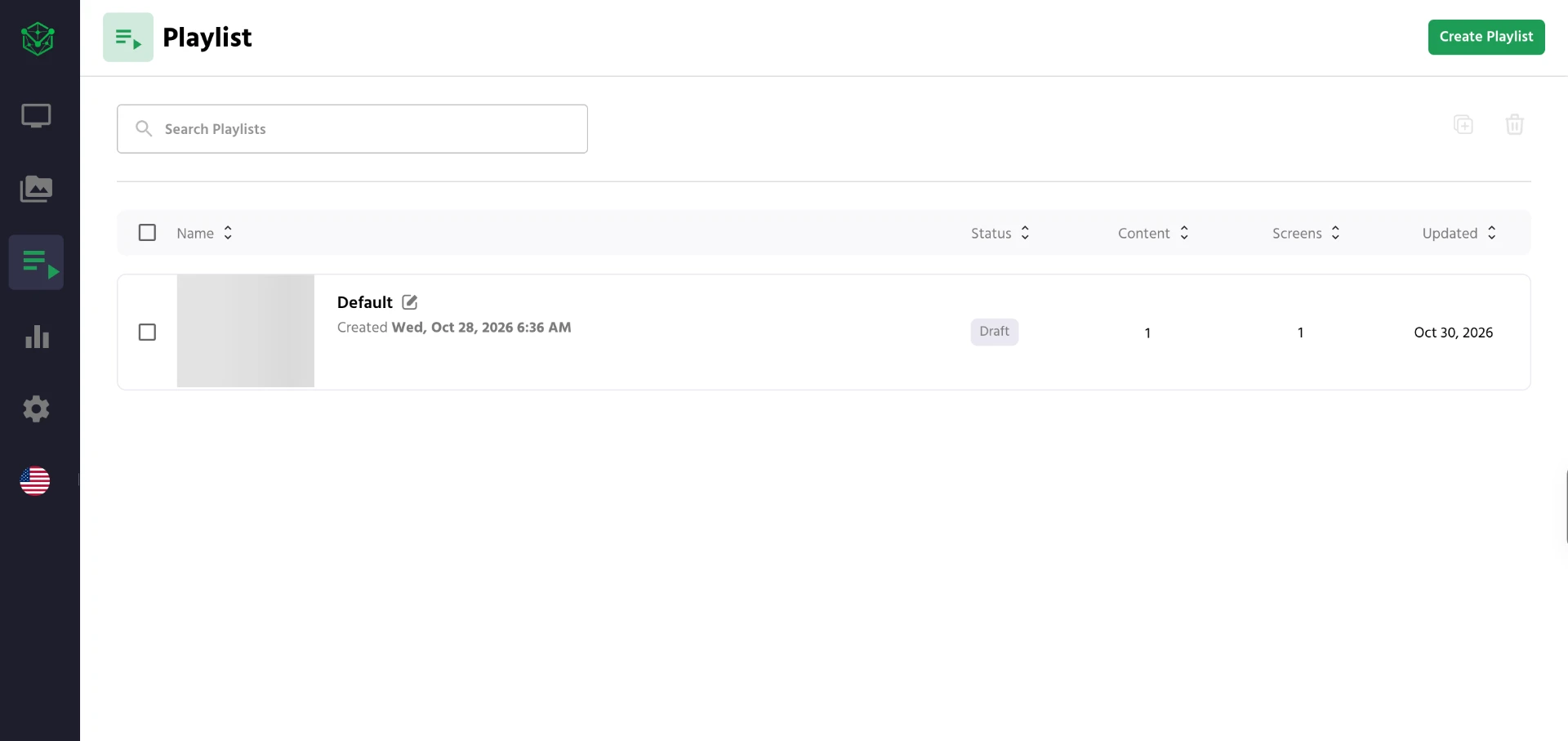
1. Create Playlist
Start a new playlist.
Creating a new playlist
Click Create Playlist, give it a name and click Save.
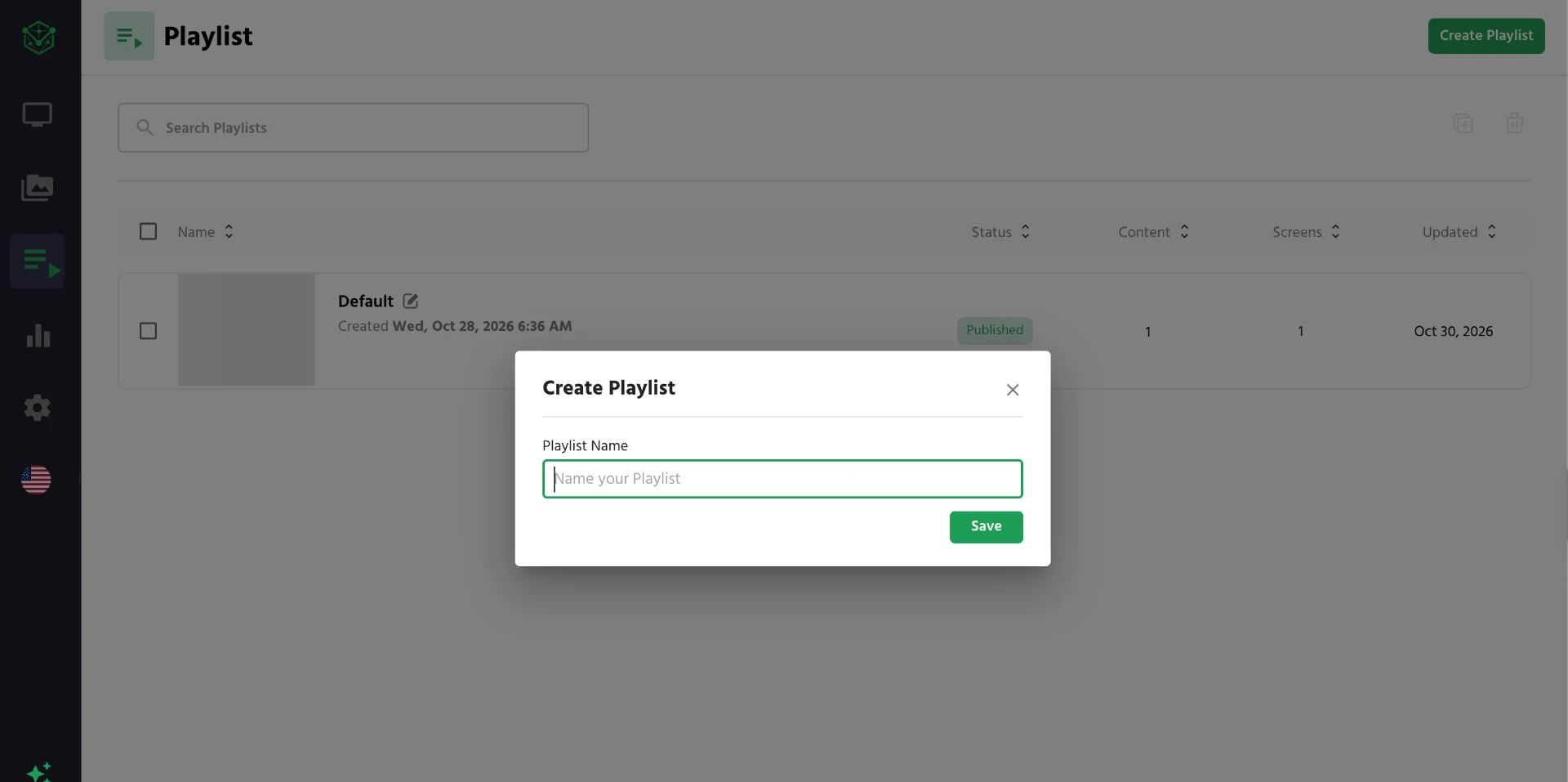
1. Playlist Name
Name your playlist so it's easy to find later.
The playlist builder
Inside the playlist builder you can add media (images and videos), drag them into the playlist, rearrange the order, set how long each item plays, and schedule content to only play on certain days and times.
When you're done editing, click Publish and the playlist will be sent to the screens it's assigned to.
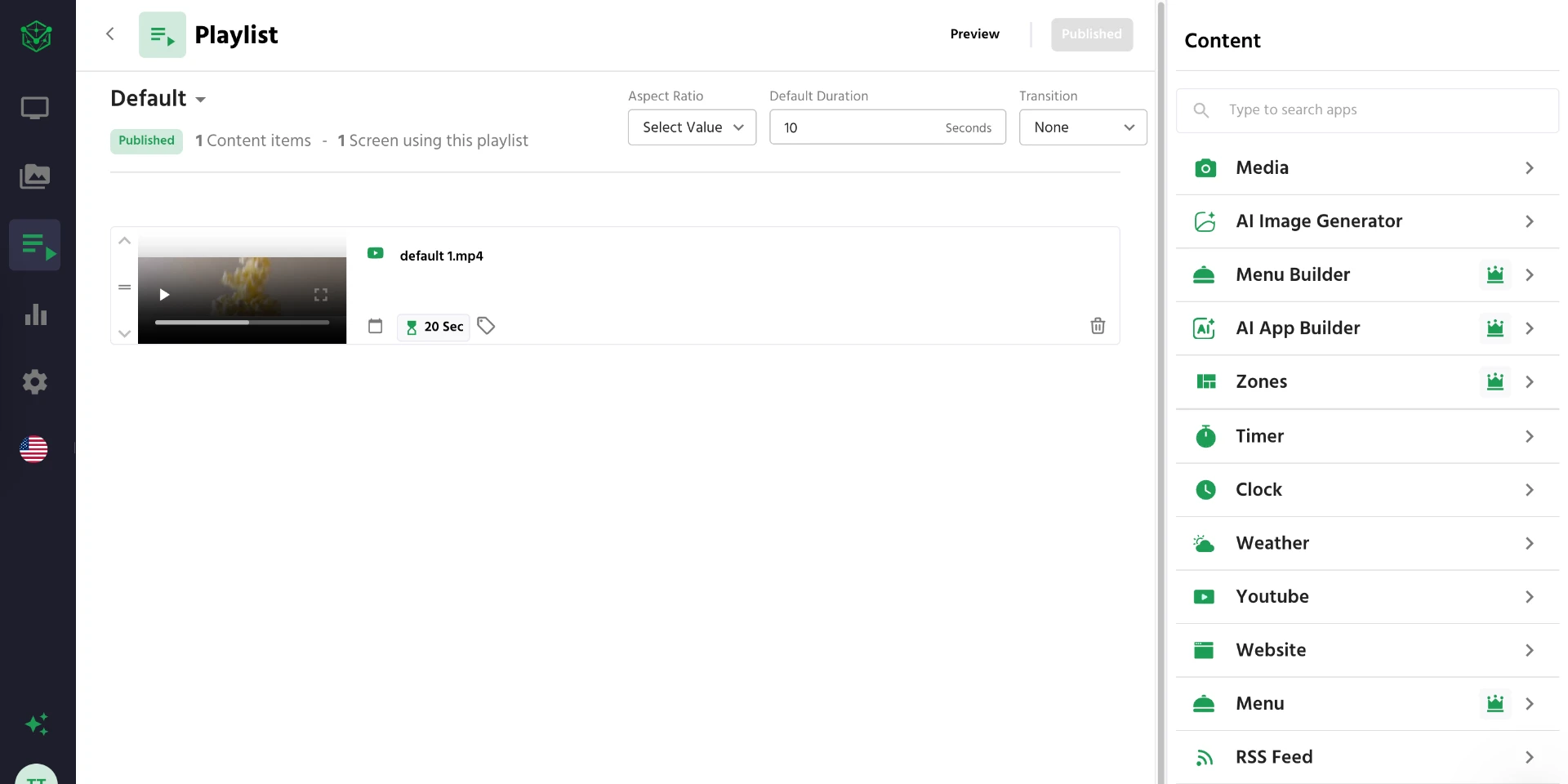
1. Add media
Open Media to find your images and videos, then drag them into the playlist.
Quick refresher: assigning a playlist to a screen
- Go to the Screens page.
- Click the dropdown next to the screen's current playlist name and pick your playlist, or tap the screen and choose it under Playlist in Screen details.
Folders of screens
When you group screens into folders, your folders show at the top of the Screens page.
Pro tip
You can assign a playlist to a whole folder of screens. It's the fastest way to set things up when a lot of your screens will be playing the same content.
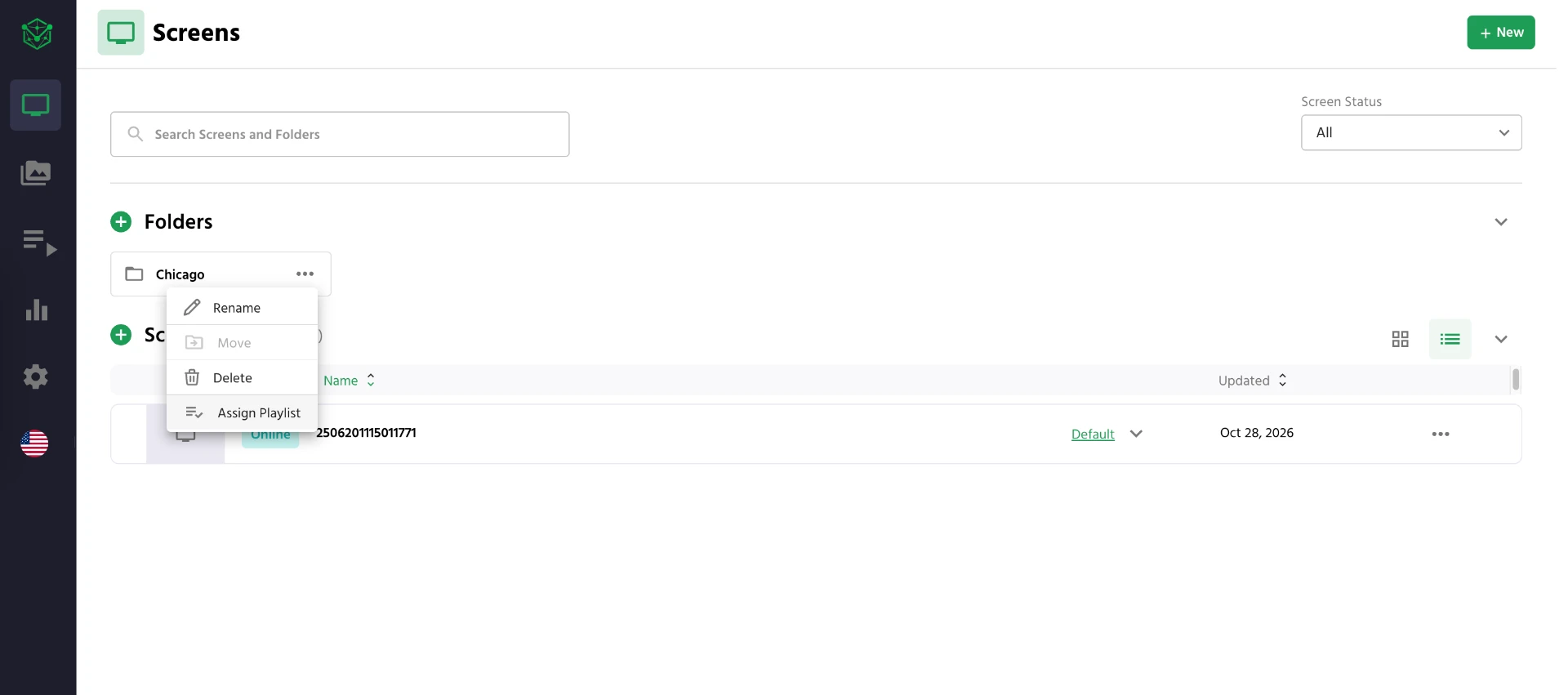
1. Folder
A group of screens. Click it to see the screens inside.